A useful tool for faster creation of specific types of orders can be to create an order template. Quick3 supports having several different types of order templates saved simultaneously.
How to create an order template:
An order template is created in the same way as you create a new order, but instead of saving it in the usual way, you save it as a template.
Go to “Order Search” and click on + to create a new order.
TODO: English screenshot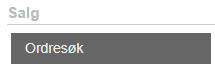
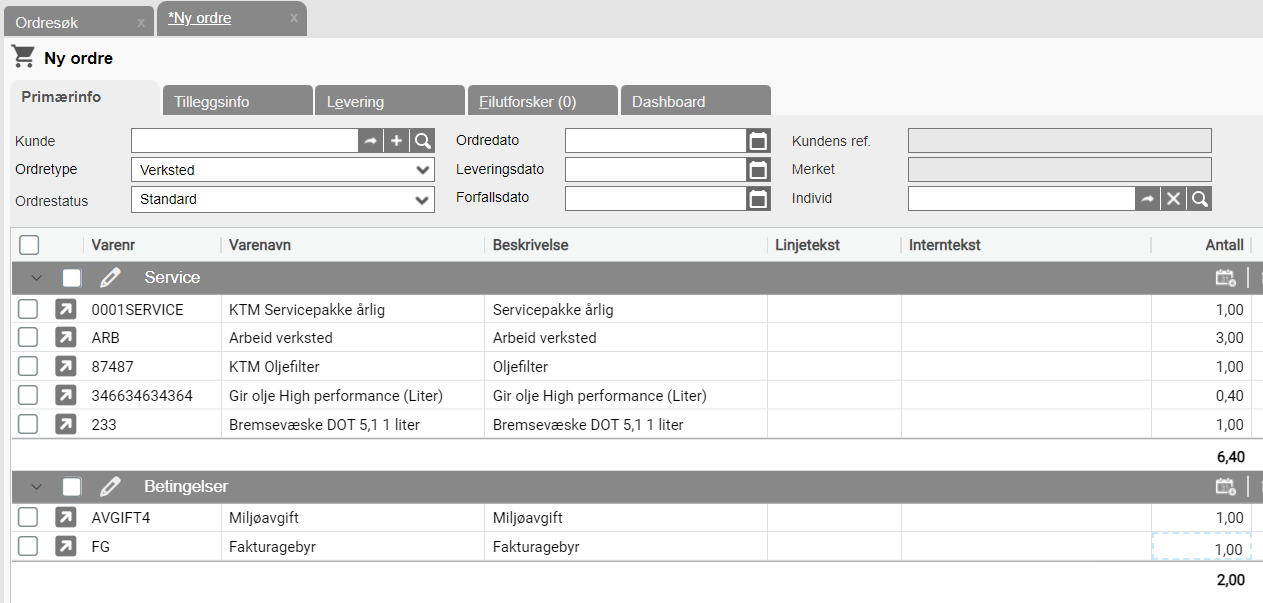
Then set up the order with the settings you want the template to have. All orders created from this template will thus have the same settings in the future.
An example could be that you want to create an order template for service orders in the workshop because these orders are often similar and should contain many of the same items each time.
Add items, blocks, and settings that should be fixed for this type of order. You will always be able to change/adjust afterwards when new orders are created, but all orders created from the template will have the same starting point.
TODO: English
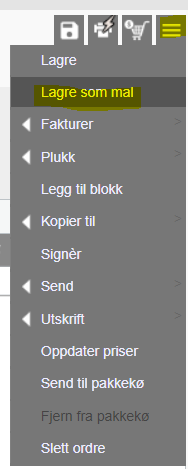
When you are finished editing, click on the hamburger menu in the top right corner and select “Save as template.”
TODO: English
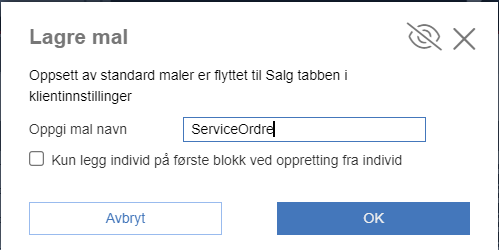
 Give the order template a name that is easy for all employees to understand.
TODO: English
How to create an order from an order template:
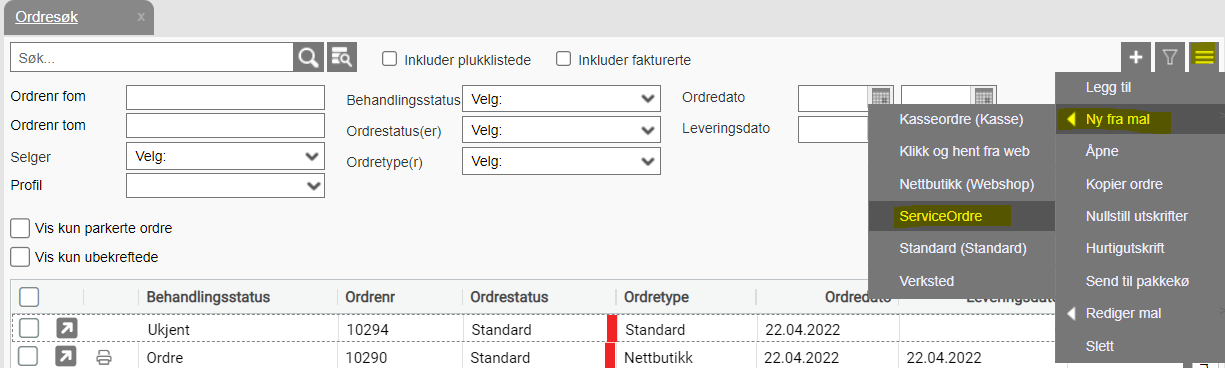
To create an order from a template, go to the hamburger menu in the top right corner and select “New from template” and then choose the template you want to use.
TODO: English
How to edit a saved order template:
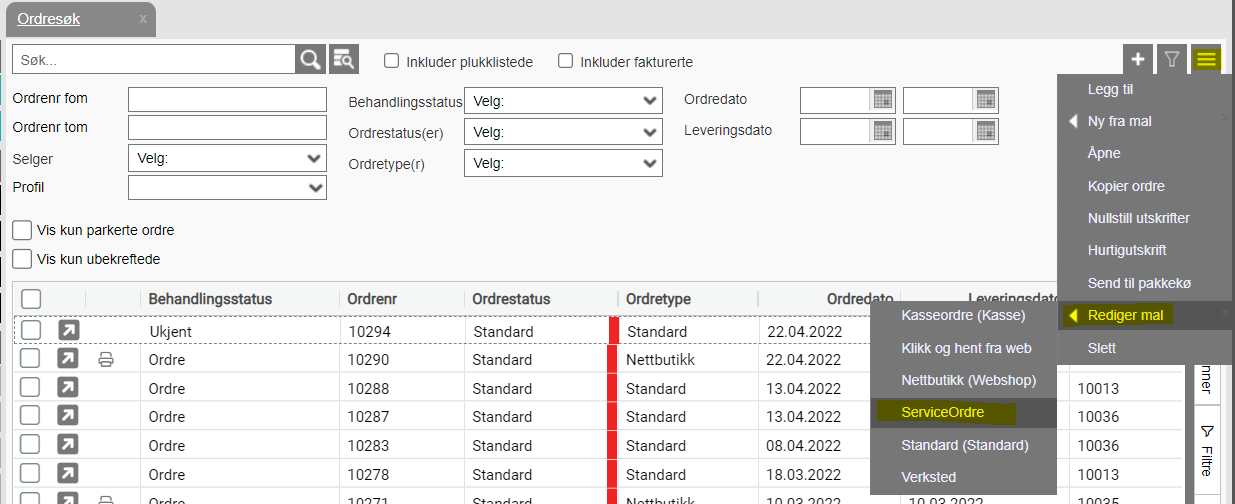
You can always go back and change an existing order template by clicking on “Edit template” in the menu.
Remember to save when the desired changes are made.
TODO: English
TODO: Translate
Nyttige lenker:
Was this article helpful?
That’s Great!
Thank you for your feedback
Sorry! We couldn't be helpful
Thank you for your feedback
Feedback sent
We appreciate your effort and will try to fix the article