Before you begin:
This article only contains information about the customer facing aspects of the Price Hotel in Quick3. This service requires that certain modules are activated on the client, and these modules can only be activated by our Customer Success or Support teams. In order to use the Price Hotel the subscriber is also required to be an authorized dealer by the suppliers before access is granted.
Activation and use of the Price Hotel also incurs a monthly cost based on the number of suppliers one wishes to subscribe to, as well as a one-time setup and configuration fee. Please contact us using the customer portal for more information and current pricing.
Introduction
Quick3 offers the opportunity for all customers to subscribe to our Price Hotel. The Price Hotel is a huge database which contains purchase and sales prices from close to 100 different suppliers. This service makes sure that your business continuously has updated prices and item names from chosen suppliers. Many dealers also have unique terms and conditions from certain suppliers, and this can also be configured in the Price Hotel so that your business gets the exact prices they're meant to have.
The setup of the Price Hotel is done in collaboration between your business, the suppliers, and Quick Systems. Please contact Support for more information and to initiate this process.
In order to prevent unauthorized access the Price Hotel, Quick Systems always checks whether a business who is requesting to subscribe to it is a genuinely authorized dealer for the suppliers. Therefore, the customer has to be prepared for the process to take some time, as it requires manual correspondence with suppliers.
Setup and usage
The setup for connecting and synchronizing against the Price Hotel can be found in the main menu through the Items > External Price Lists menu option. In this view you will see the following settings:
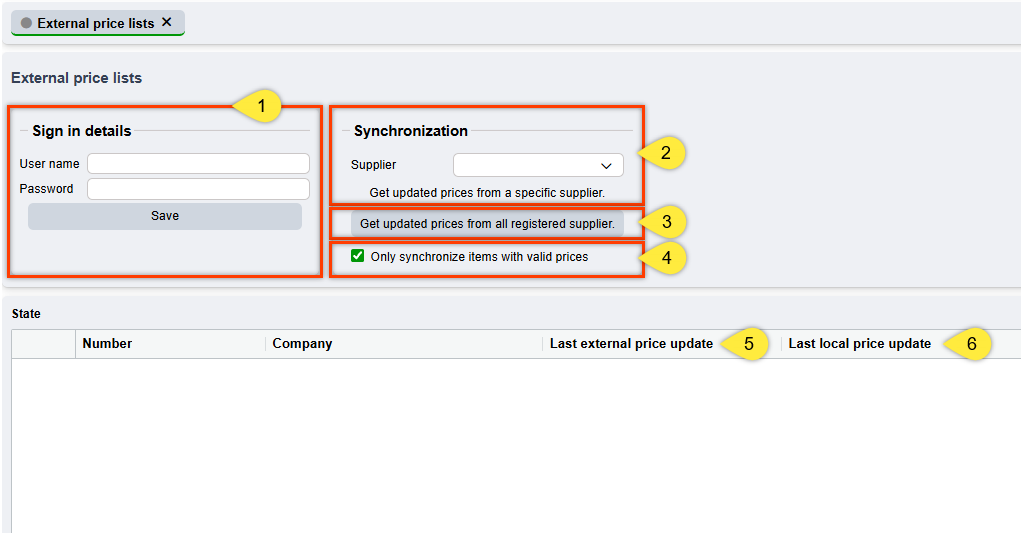
- Sign in details
Here you type in the username and password provided to you by our Customer Success or Support teams. - Supplier
Here you can select among the suppliers that have been approved and made available in your Price Hotel for manual synchronization. You can press the "Get updated prices from a specific supplier" button to fetch new prices from the selected supplier. If the last external price update is older than the last local update, no changes will be made. - Get updated prices from all registered suppliers
Starts synchronization for all available suppliers across all items and item groups (you can read more about supplier setup later in the article). If the last external price update is older than the last local update, no changes will be made. - Only synchronize items with valid prices
This option ensures that you won't synchronize prices on invalid or expired items, which can often be listed with a price of 0,- in the Price Hotel. - Last external price update
This is the date and timestamp for when prices for the supplier was last updated. - Last local price update
This is the date and timestamp for when prices for this supplier were last synchronized into Quick3.
When you've typed in your sign-in details and saved it, a connection should be established to the Price Hotel automatically, but you still need to close and reopen the tab to see the available suppliers in the dropdown menu and in the grid. The grid will tell you which suppliers are available, and when their prices were last updated both externally and locally.
If you make local changes to an item which is connected to a supplier on the Price Hotel, this change will endure only until the item is updated on the Price Hotel. Once that happens, and a synchronization is initialized, any local changes will be overwritten with new data from the Price Hotel. If you want to avoid this for certain items, you can lock the price of the item using the lock icon in the item header. When a price is locked, it will no longer be overwritten by the Price Hotel.
Automatic synchronization
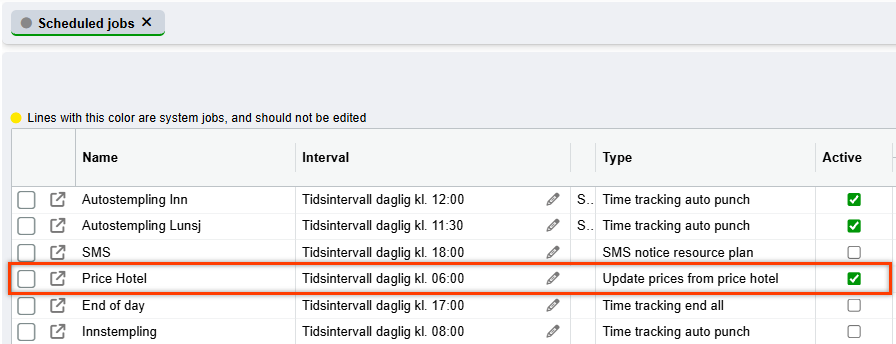
To avoid having to do all synchronizations of the Price Hotel manually, you can set up an scheduled job in Quick3 so the system can do this regularly on its own. Usually this job is set up by one of our agents as part of the Price Hotel setup, but it is possible for the customer to create or edit such a job themselves.
Open the main menu and find the Settings > Scheduled jobs option. Click the Plus Sign to add a new job, with the Type of "Update prices from the price hotel" (see example below). This job can be scheduled to run outside of opening hours – like in the early morning – to make sure you always have all your prices updated before the day starts.
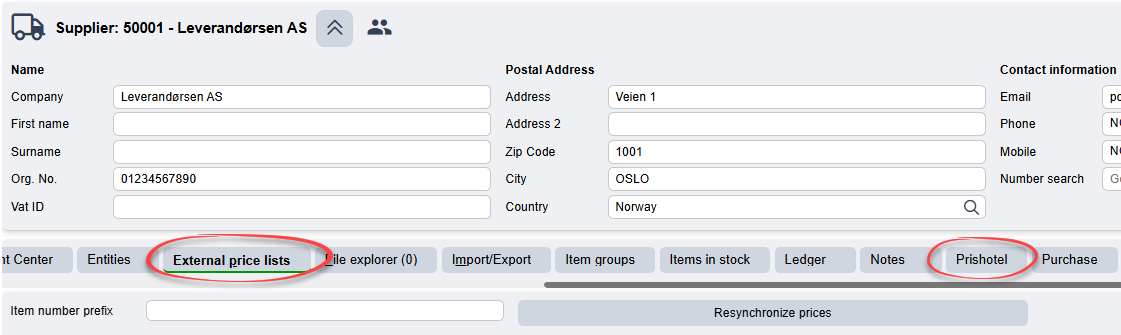
Supplier view
In each supplier view you will now find two new tabs; External Price Lists and Prishotel.
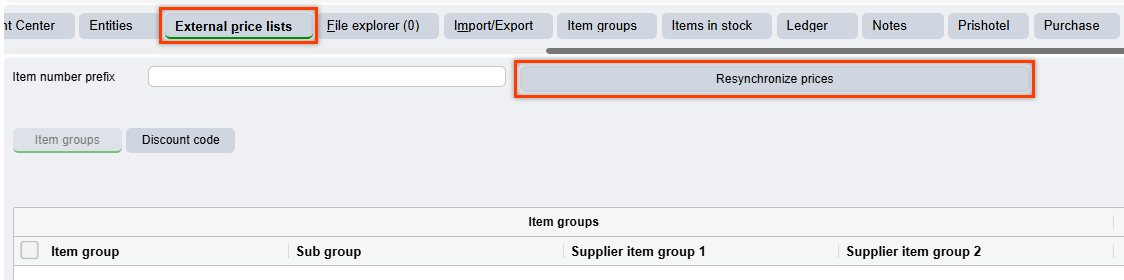
In the External Price Lists tab you will be able to map items and item groups as it pertains to discounts, discount codes, and markups. The button "Resynchronize prices" at the top of the view will fetch all prices for items that exist locally in Quick3 for this specific supplier, regardless of the last synchronization date.
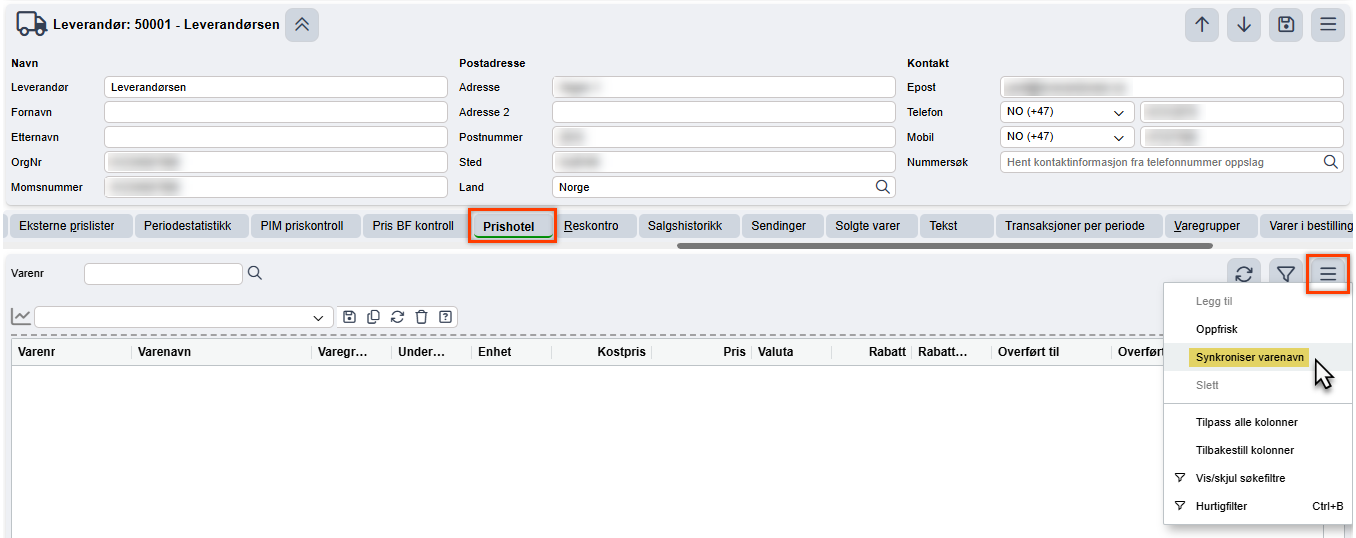
Finally, the Prishotel tab provides you with an Insight view of all the items available from this supplier in the Price Hotel.
Synchronizing item names
One can also choose to synchronize item names from the suppliers one is subscribed to through the Price Hotel. As opposed to prices, such a synchronization will never happen automatically, as all businesses should be able to choose whether to use their own naming conventions for any items in their assortment. The option to synchronize item names is therefore located on each individual supplier in the Prishotel tab in order to ensure that updating item names for a supplier is a conscious and intended action. This way, no unintended changes will occur to item names for items that are connected to the Price Hotel.
Discount Matrix
Our Price Hotel has its own setup for the Discount Matrix which provides the option to set discounts on specific items or item groups for specific customers or customer groups, provided that the price files from the supplier contains such discount codes and are imported to the Price Hotel.
Any setup of the discount matrix as it relates to the Price Hotel is set up in the suppliers External Price Lists tab.
Was this article helpful?
That’s Great!
Thank you for your feedback
Sorry! We couldn't be helpful
Thank you for your feedback
Feedback sent
We appreciate your effort and will try to fix the article