Introduction
Stock Batch Handling is a way for Quick3 to trace and surveil batches of items as they move throughout the system, all the way from goods intake to finalized sales. It enables easier handling of expiring items, potential recalls, and tracking of entities. This article will give you a rundown of the feature, how it works, and where you can find it within Quick3
With batch handling you will be able to know exactly what the items you sell cost you at time of purchase. Which level of batch handling you choose for your items is up to you, but with automatic handling no action is required on the user's part.
How it works
All items that are received through Goods Intake will now be put into a batch during intake. This batch number is either automatically assigned, or needs to be defined manually if the item you're receiving has manual batch handling enabled.
Once the goods are received and posted, you will be able to track and use these batches throughout Quick3 using new Batch tabs and columns in various views throughout the program.
The batch handling feature is designed to be automatic, working in the background as default. The system creates batches based on goods intake, and all items are set to operate on a First In, First Out (FIFO) basis during sales or stock processing. Last In, First Out (LIFO) processing is also available using an option in the client (more about this later in the article).
However, it is possible to enable manual batch handling on specific items in order for the user to define batch numbers during intake, set whether expiration dates are required for each batch, and consequently enabling the selection of specific batches while handling those items.
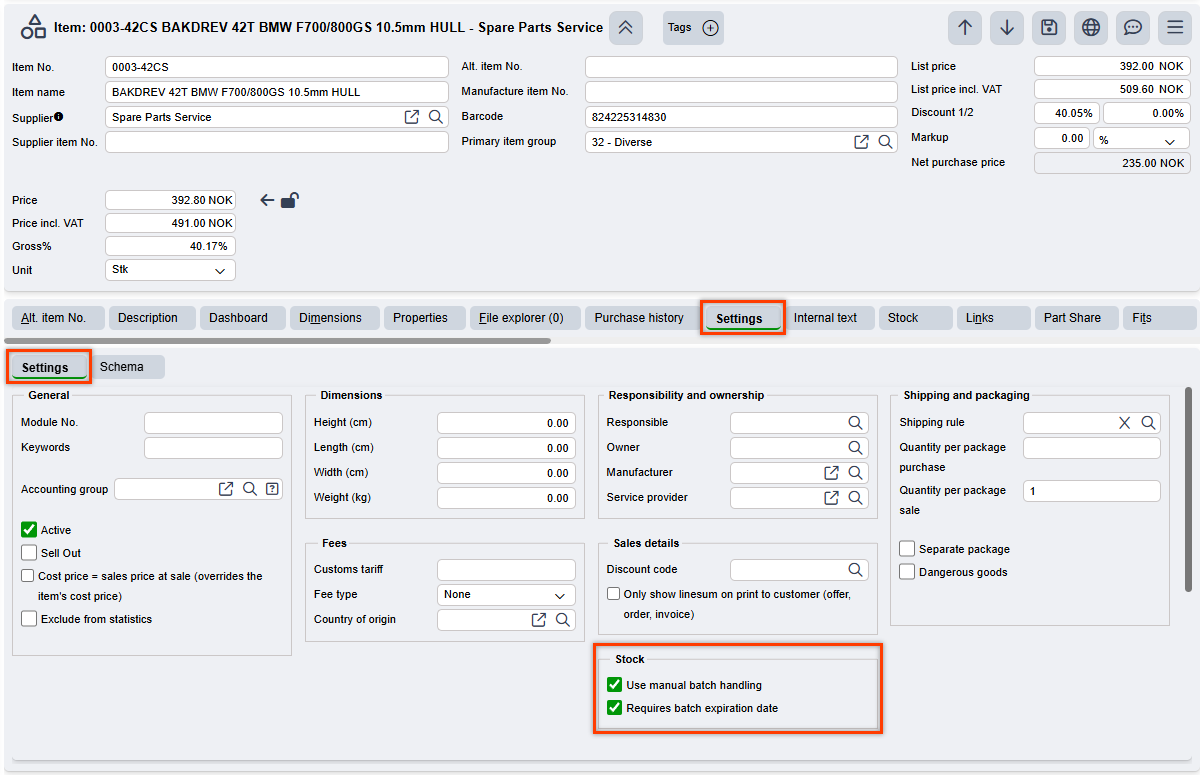
When manual batch handling is enabled, the item's cost price will of course always be calculated based on the specific batch you select during a sale, and FIFO/LIFO methods are ignored.
We do not recommend enabling manual batch handling unless you need:
Otherwise, we recommend letting the system handle batches automatically. |
Margin calculation
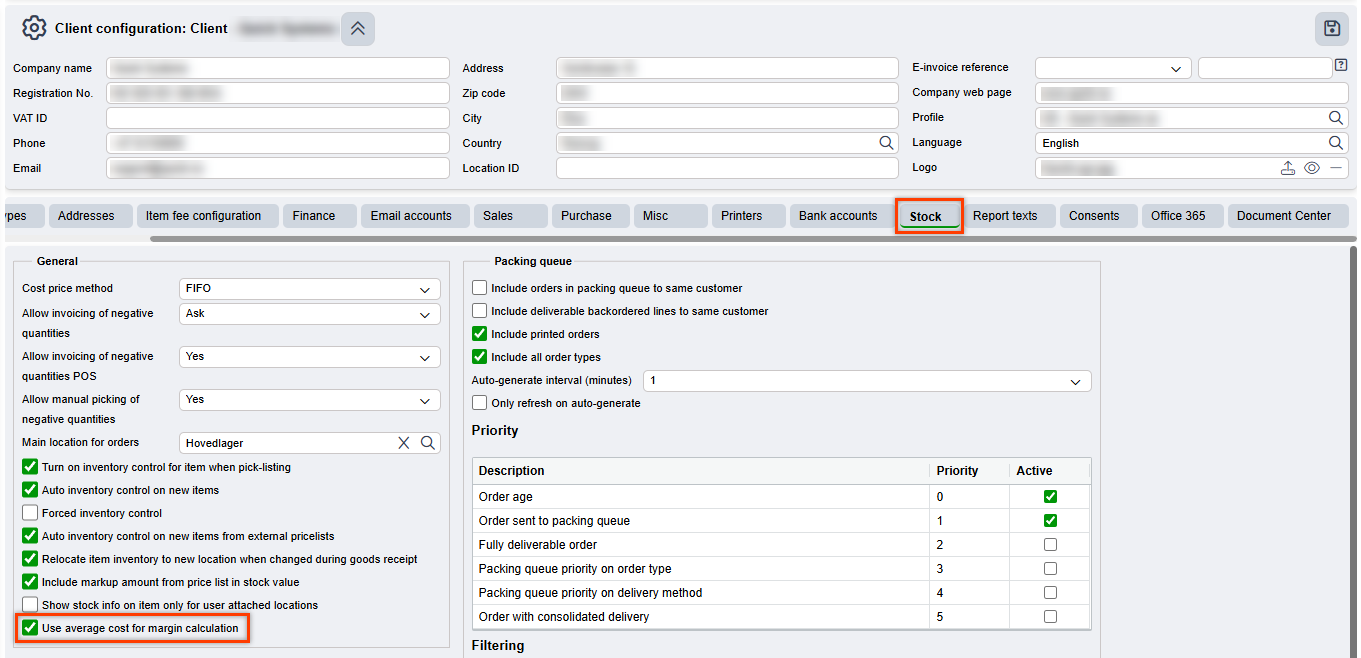
Now that batches are implemented properly in Quick3, average cost across batches is no longer the default way to determine gross margin percentage. Instead, this is now calculated based on the cost price of the batch being sold. To return to an average cost GM calculation for items, there is now a toggle within the client's Stock > General tab called Use average cost for margin calculation which will restore the old behavior for all items if needed.
Intake
During Intake, you will see new columns and a tab specifically for Batch information. The values for these will be auto-filled so long as your item isn't set to manual batch handling. If manual handling is enabled, you need to define the batch number, the amount of items per batch, and each batch's expiration date.
The colored dot in the batch column indicates whether an entry is complete or not:
- RED: Incomplete
- GREEN: Complete / Ready
Scan or write directly in the entry in the Batch column for the item you wish to define batches for. You will first be prompted for a batch number, then the amount of items to add to that batch. If the item is set to require an expiration date at intake, you will find this option in the Batch tab, as demonstrated below.
In this example we already have a batch in stock numbered "55". Therefore we number the incoming batch "56" and set the amount of received items for that batch. If there were more batches for this delivery, you would add each batch and their respective amounts accordingly.
Sales
You will notice a new column in the Order and Offer views called Batch. When selling an item without manual batch handling enabled, the system will automatically choose the oldest batch in your inventory. If there are not enough items in that batch, the system will continue from the next available batch. If several batches are used to complete the amount on the order, an average cost price based on the batches used will be calculated and displayed on the order line.
If you do have manual batch handling enabled for the item, this column allows you to search for and select specific batches and amounts for that item. To see what batches are available and the amount of items available from them, you can consult the Stock entries tab in the lower section.

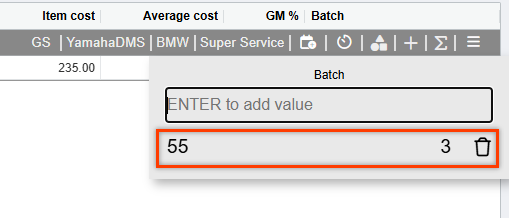
With manual batch handling enabled, you are required to define both which batch you're picking the item from, and the amount to be picked, for each sale of that item. Simply scan or write in the line's Batch entry to open the value editor. Here you can define different batches and their respective amounts as needed. The batch number will be on the left, and the amount will be on the right.
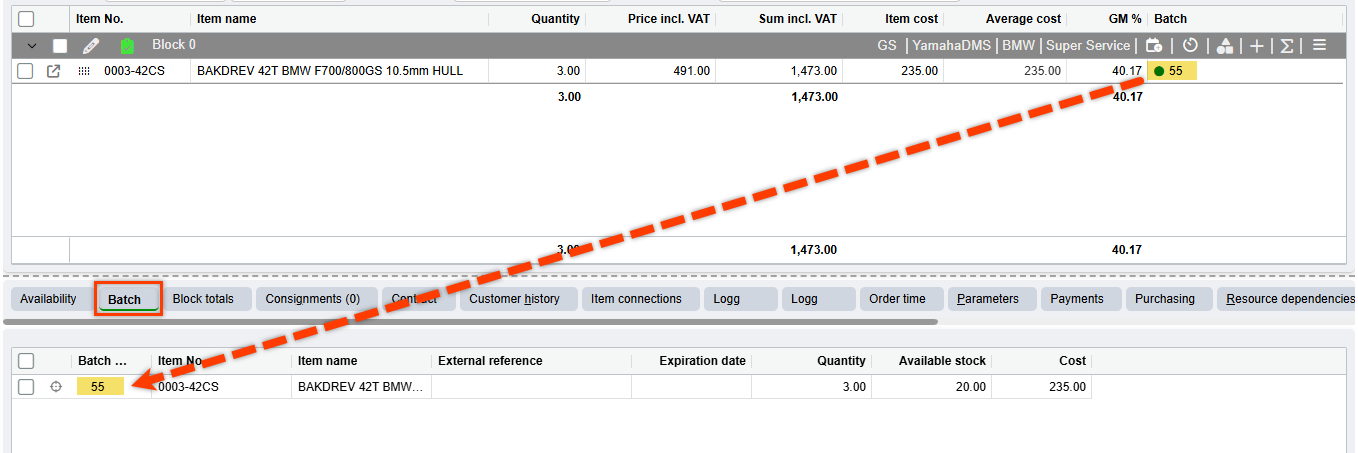
The Order view specifically also has its own Batch tab, where you can see a list of all the batches related to the order.
Complete list of batches
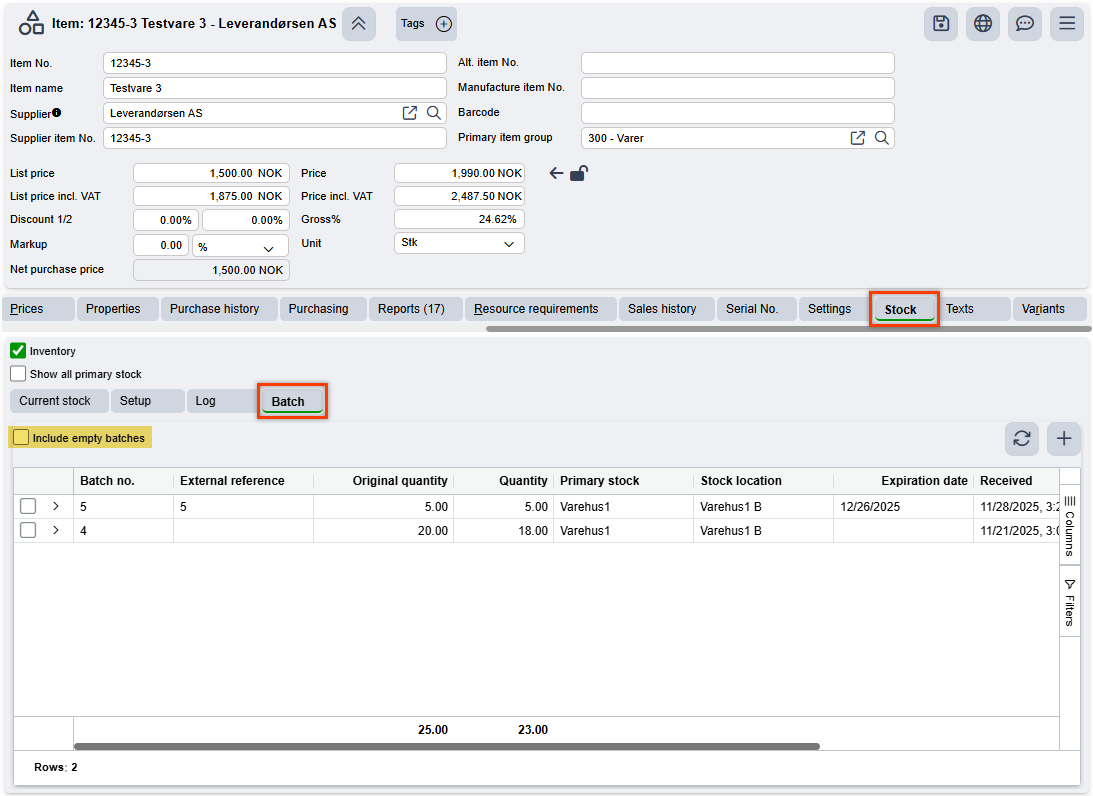
You can see a complete list of all batches for an item in the item view. Go to the tab called "Stock", and then "Batch". Here you can even choose to view empty batches in order to see a complete history of all the batches created for the product.
FIFO / LIFO
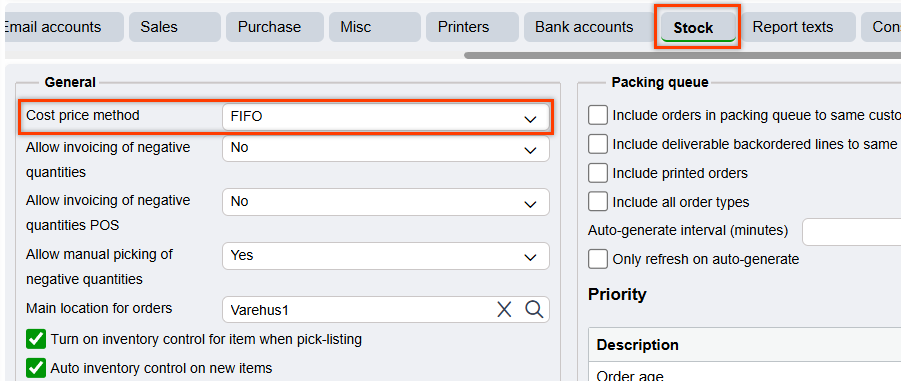
To change the implementation of FIFO / LIFO during sales in your client, open your Client Configuration and find the Stock tab. In the General section, you will find a dropdown called Cost Price Method, where you can switch between the two options.
Stock taking
If an item is set to have manual batch handling, the default behavior for stock taking is counting per batch. You will see a new Batch column in the inventory listing to help you keep tabs on which items belong where, the locations of each batch, and which items require counting in their respective batches.
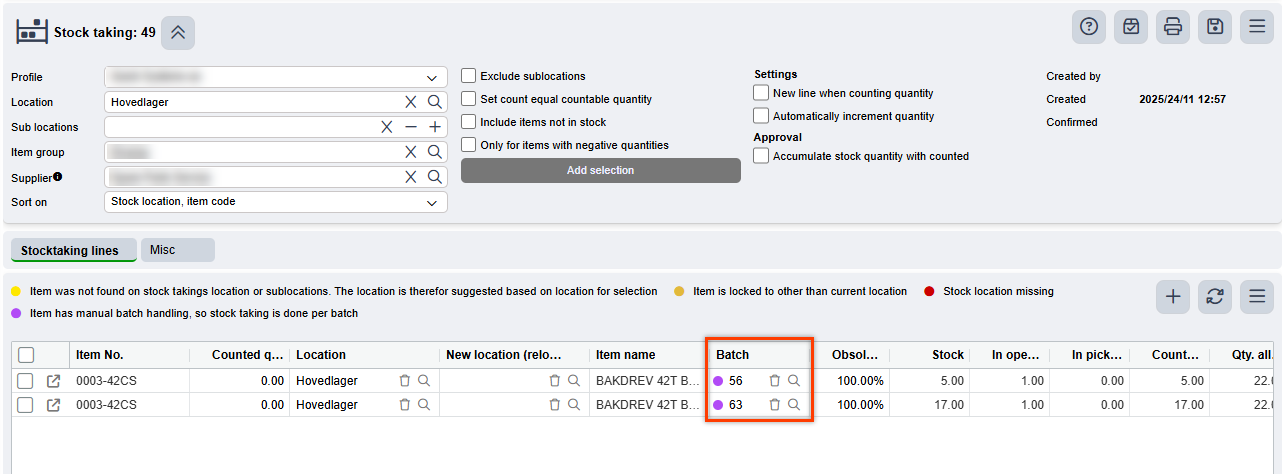
If there is no change to the inventory, the batches will remain as they are. If you count a surplus of items compared to your expected inventory, a new batch will be generated into which you can put the surplus items. The cost price of this batch will be based on the oldest batch currently in inventory.
Correcting cost of goods sold during Invoice Control
In some cases there might be changes to an items cost price between its intake and invoice control; You sell an item right after its intake, but later when invoice control is performed, the cost has changed. Previously this would result in accounting errors which would have to be manually corrected with inventory changes, but with batch handling and the right setup of accounting rules this can now be done automatically!
To set this up we will need to add Accounting Rules to all Accounting Groups that pertain to items with Inventory. In our example we will use the standard group "300 - Items" for this purpose.
Open the home menu (⌨️Alt+H), and navigate to Accounting > Accounting group. If you cannot locate this menu item, it's because you don't have access to the Accounting module in your client. Please consult your local management if you need access.
In our example we will be using accounting group "300" which pertains to inventory items in our client. Make sure you're in the tab named "Accounting rules", and click the plus sign to add a new blank row at the bottom of the table. Click the magnifying glass in the field farthest to the left, under the Rule column.
You will see a dialogue pop-up containing all the different accounting rule codes that exist in your client. Here we'll create a new code with the plus sign button, which we'll call "Correction of cost of goods sold". Click the floppy disk to save, check the new accounting rule in the table, and click OK.
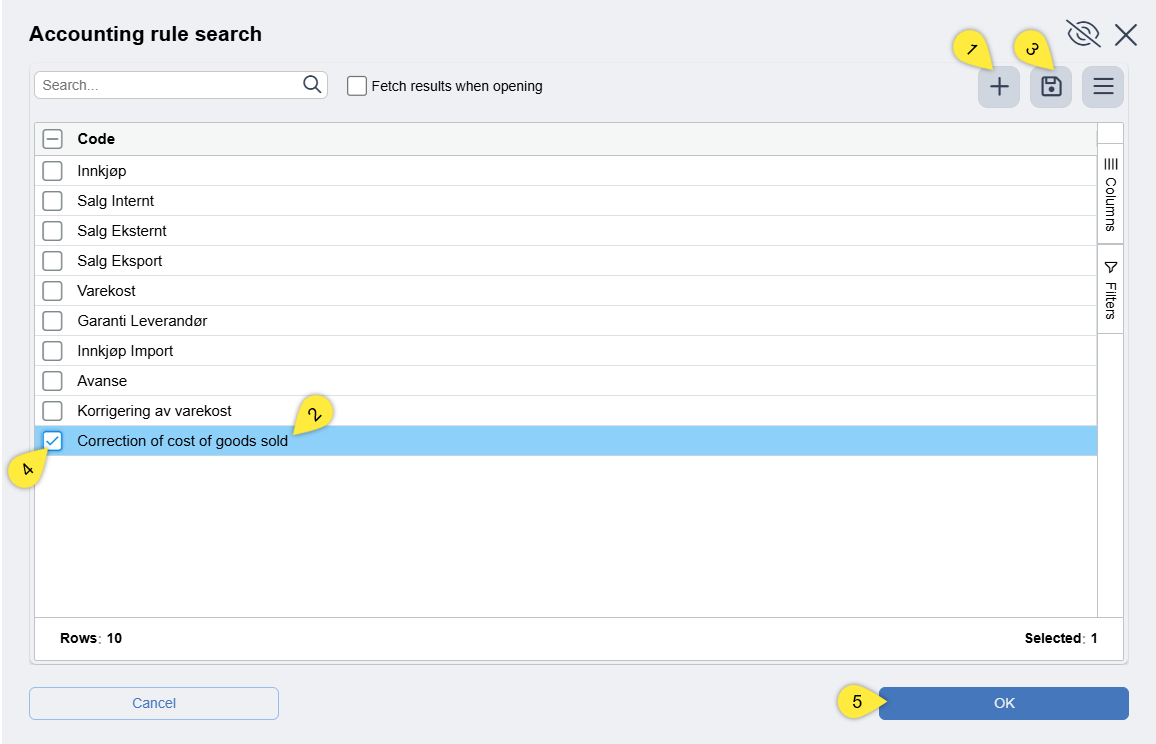
The accounting rule "Correction of cost of goods sold" should now be added to your accounting rules table. Now we need to define how this accounting rule is supposed to work.
First, set this rule's Source to be "Cost of goods sold correction". Then set its Debit and Credit accounts to match that of your "Item Cost" rule, and save (⌨️Ctrl+S). Lastly, find the row for your "Purchase" rule, and change the value of the Include rule column to be our new "Correction of cost of goods sold" rule, and then save again (⌨️Ctrl+S).
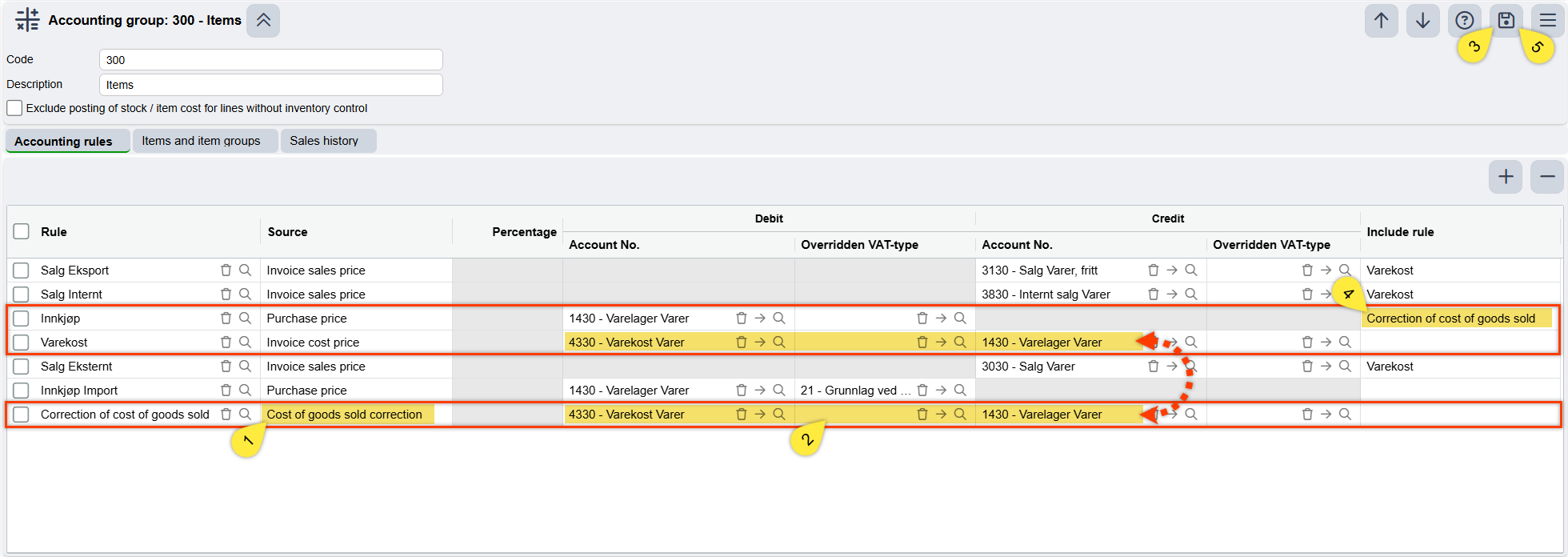
| We realize that these screenshots have a mix of Norwegian and English terms for the accounts and account rules. This is because these fields are already pre-defined in the database and as such are not subject to Quick3's user account language selector. We apologize for any inconvenience. The debit and credit accounts shown in the example might also not correlate to your client's own accounts. Please refer to your business' Chart of Accounts to see which account numbers are mapped to which Account Groups. |
When this accounting rule is set up correctly changes in cost price that occur between goods intake and invoice control will have corrections automatically posted when the purchase is booked.
See our article Accounting - Accounting Groups for more detailed information about accounting groups and accounting rules.
Was this article helpful?
That’s Great!
Thank you for your feedback
Sorry! We couldn't be helpful
Thank you for your feedback
Feedback sent
We appreciate your effort and will try to fix the article