Before you begin:
The Waiting Zone is a subsection of the Scheduler. You can find the full documentation for the Scheduler here.
Introduction
The Waiting Zone is a section of the Scheduler that gives you a complete overview of all unplanned tasks. From the Waiting Zone you can quickly and easy delegate tasks and orders to resources to keep track of busy workdays.
Overview
You'll find the Waiting Zone among the menu buttons in the top right of the Scheduler view:

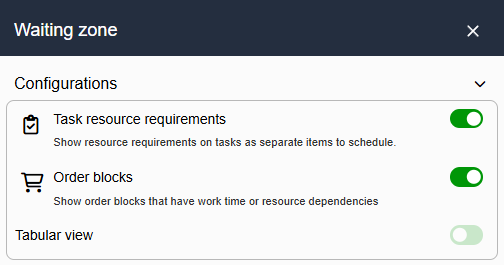
When you click this button, the Waiting Zone will pop out to the right of the timeline. You can adjust its width if necessary. It has a default block view of all available tasks. It's possible to switch between the block and tabular views by clicking the small arrow to the right of "Configurations", and then using the switch for Tabular View. In the configuration you'll also find filters for which type of tasks to show in the listing.
The tabular view can be adjusted by moving, hiding, and adjusting columns. This setup is saved on a resource level so that each user will always have their preferred table setup when working with the Waiting Zone.
Usage
Orders
For an order to show up in the Waiting Zone without a connected task, it needs to contain at least one order line with an item that has a set work time, and is set to be visible for the Scheduler.
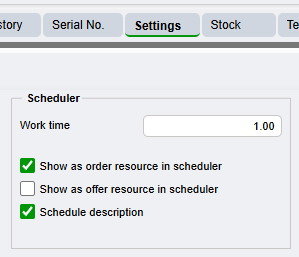
If the order has both a line with a set work time, and a connected task, both of these may show up in the Waiting Zone separately, depending on the filters you've chosen.
If an order has an associated task, you can also plan it directly by clicking the Scheduler button on the top right of the order block. It will then go straight to the Waiting Zone for scheduling.
Tasks
For a task to appear in the Waiting Zone, it needs to have a resource dependency in the form of a duration (work hours). This can be assigned in the task view itself within the Resources tab. The task also cannot have a Status which marks it as completed, as the system will logically consider completed tasks to be unnecessary for scheduling.
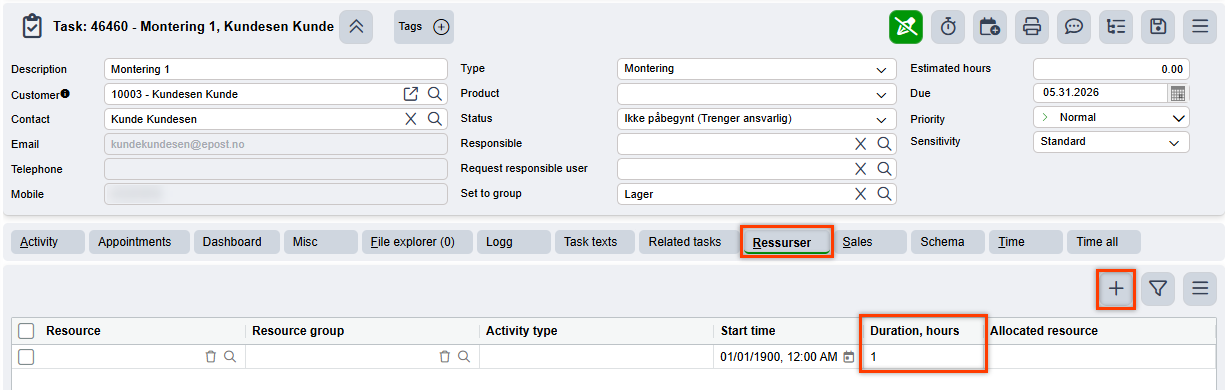
Just like with an order, you can also plan tasks directly by clicking the Scheduler button. This will open the task directly for scheduling on your timeline.
Multi-scheduling
You can schedule several events at a time from the Waiting Zone by selecting them with checkmarks, then clicking and dragging them to the timeline. When you release them, editing forms will pop-up one by one for each event so that you can fine-tune dates and other details before hitting Create to finalize them.
Multi-scheduling also lets you plan several order blocks at once. Open an order with multiple blocks that have associated tasks, select them by using the blocks' checkmarks, and choose "Schedule work" from the order's hamburger menu. The blocks will then be added to the Waiting Zone, and the system will automatically open the Scheduler so it's easy to schedule the tasks immediately.
If you do not select any specific blocks before selecting "Schedule work", this function will automatically grab all blocks on the order that have an associated task and send them to the Waiting Zone.
Assigning events
You can quickly and easily assign events to resources by simply clicking and dragging a task or order from the Waiting Zone and onto the timeline and dropping it in the corresponding resource's row. The editing form will automatically fill in with all available information from the task or order itself. You can make changes to it before clicking Create to assign the event to the resource in the timeline.
If the event you're assigning is connected to a specific order, this order will open automatically in its own separate tab once the event is created.
Quick filtering
If your company has a lot of waiting tasks and you quickly need to find a specific one, you can use Quick3's Quick Filtering function. Make sure that your cursor is set in the tabular view of the Waiting Zone, and press ⌨️Ctrl+B on your keyboard to open it and start typing to filter through your tasks.
Was this article helpful?
That’s Great!
Thank you for your feedback
Sorry! We couldn't be helpful
Thank you for your feedback
Feedback sent
We appreciate your effort and will try to fix the article