Before you begin:
The new Scheduler is rolling out to all customers in Q4 2026. This article will familiarize you with the new Scheduler's features and workflow. Please contact our support department if you have any further questions.
Introduction
The Scheduler is a comprehensive module for keeping track of your resources and tasks. We've designed the module to be as easy and clear as possible so that you can easily plan and assign tasks and appointments, both to yourself and other resources.
Table of contents
New Scheduler features
There are several improvements to the new scheduler over the old one:
- Waiting Zone
Here you can see and manage all tasks that are not yet assigned to a resource. Please see the Waiting Zone's own article for more information about this feature. - Timeline Control
You can now both zoom and scroll horizontally in your timeline by using the keyboard modifiers CTRL or Shift with your mouse's scroll wheel while hovering over the view with your cursor. - Tags
Tags on orders and tasks will now be shown on events in the timeline. - Collapsible resource view
With the collapsing resource view to the left you can easily configure which resources that should appear in your timeline, or even hide the view entirely to make more space for your timeline. - Visual customization of events
You can now adjust the color, style, and size of events in the Scheduler based on your preference.
Navigation
There are several ways to navigate in your timeline. The navigation menu helps you find the exact point of time you need.

- You can use the timespan buttons to select the timespan of your timeline. With these buttons you can limit your view to a Day, a Week, a Month, or an entire Year at a time.
- The Date field is the obvious choice if you need to find a specific date and time quickly. You can either type the date in directly, or click the calendar icon on the right to use a visual date selector.
- With the navigation buttons you can easily navigate backwards and forwards in your timeline based on the timespan you've selected. You can also jump to the current day/week/month from here.
- On the far right, you can find the Fullscreen button, the Waiting Zone, the Refresh button, and the scheduler's Settings.
You can also use your mouse to navigate your timeline. Ctrl+Scroll zooms in and out. If you have Endless Scrolling enabled (see the Settings section) then Shift+Scroll also lets you scroll backwards and forwards.
Resource view
The new Resource view can be customized in many ways in order to help you get a full overview of all resources and resource groups in your client. By right clicking the resource table header, you will get a slew of options for filtering, columns, grouping, and sorting.
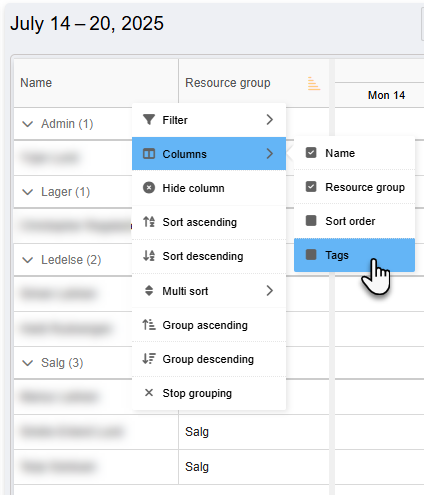
Note that the actions in this menu are context sensitive. If you want to group your resources by resource group for example, you need to right click the Resource Group column header before doing the grouping.
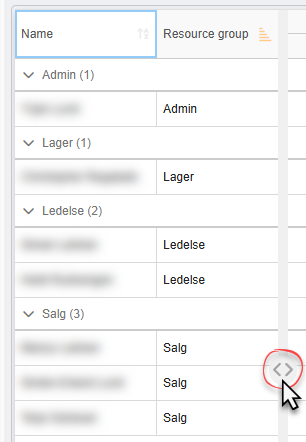
The resource view is also collapsible, which is useful if you find yourself temporarily needing more horizontal space for your timeline, or if you want to focus in on your resource view. Hover your mouse cursor over the right edge of the resource view to reveal the collapse/expand button.
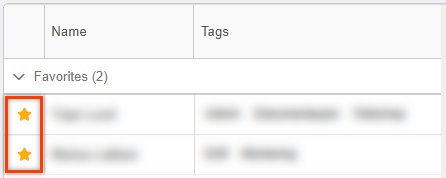
You can also mark certain resources as favorites. This will put the resources in a dedicated section called "Favorites" which will always remain at the top of the resource view.
Creating events
Events directly on the timeline
To create an event in the scheduler, simply move your mouse cursor to the appropriate time and resource in the timeline, then click and drag to pen the duration of the event. When you release the mouse button you will be presented with two options for what kind of event you wish to create;
- Memo
A simple note or memo, unattached to any specific task, customer or entity. - Work order
Provides the possibility of connecting the event directly with a customer, entity, order template, task type, or activity type.
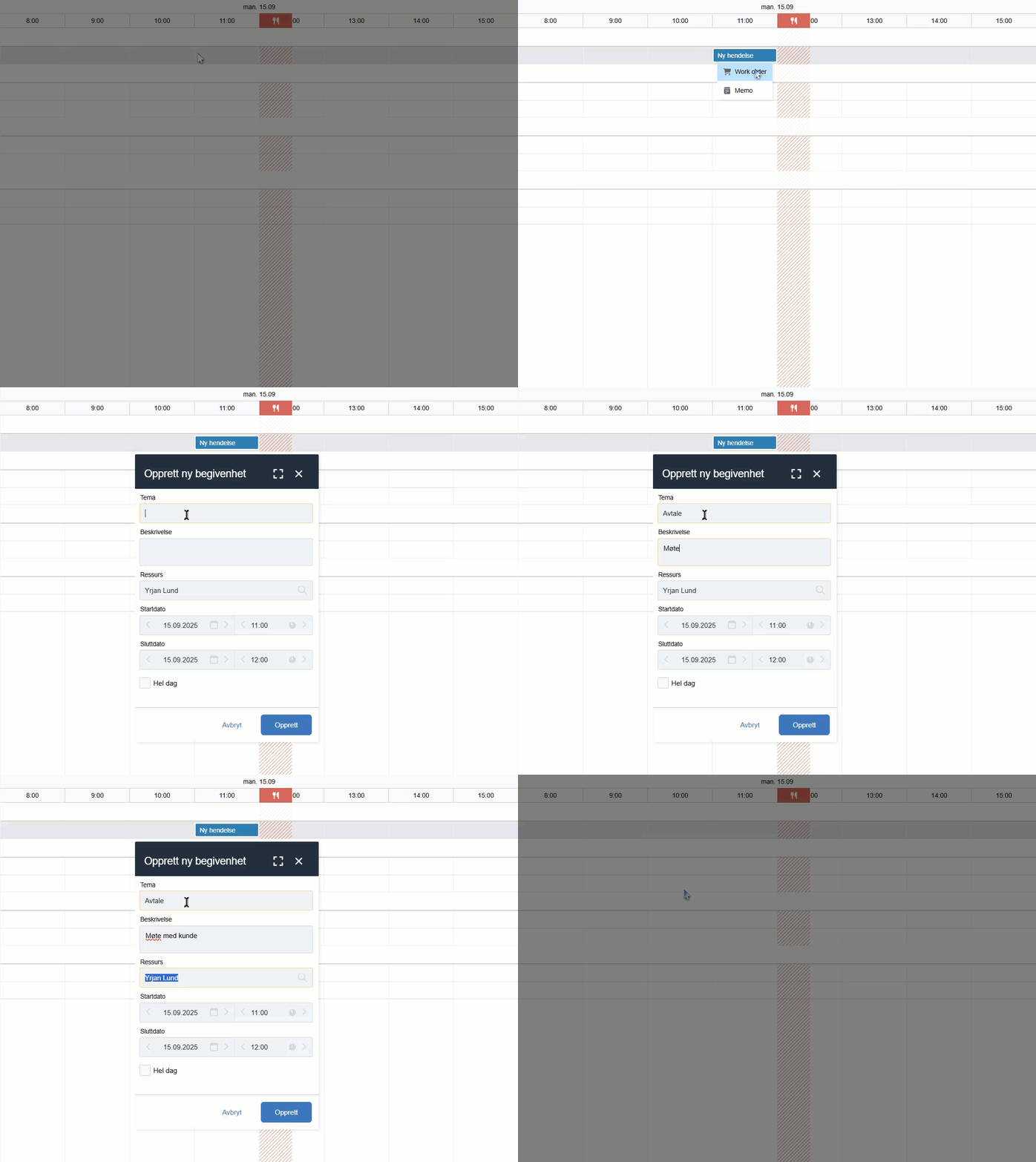
Fill in the necessary information in the event form that pops up, and click Create. The event should now be scheduled in your timeline.
Events created from order or task
From a Task you can click the Scheduler button in the menu. The task is then sent to the Waiting Zone, where it can be dragged out to the correct resource and date/time in the timeline.
As of December 2025, creating events from tasks or orders will send you to the old scheduler as long as the new scheduling workflow is not activated in your client. This behavior will be changed for all clients in time, but if you'd like your company to start using the new scheduling workflow immediately, please contact our Support team.

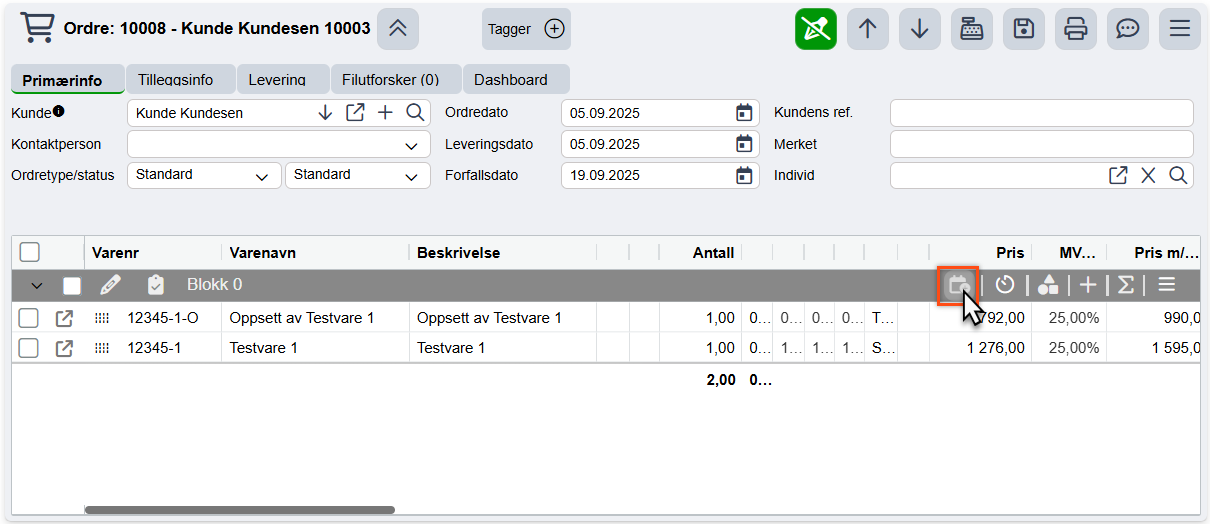
From an Order you can click the Scheduler button on a Block in order to plan an attached Task—or any order lines that have a set demand of work hours—in the scheduler.
Scheduler settings
Different resources have different needs and preferences, and the Scheduler can be customized to suit your tastes in many ways. Let's look at the options we have for customizing this view:
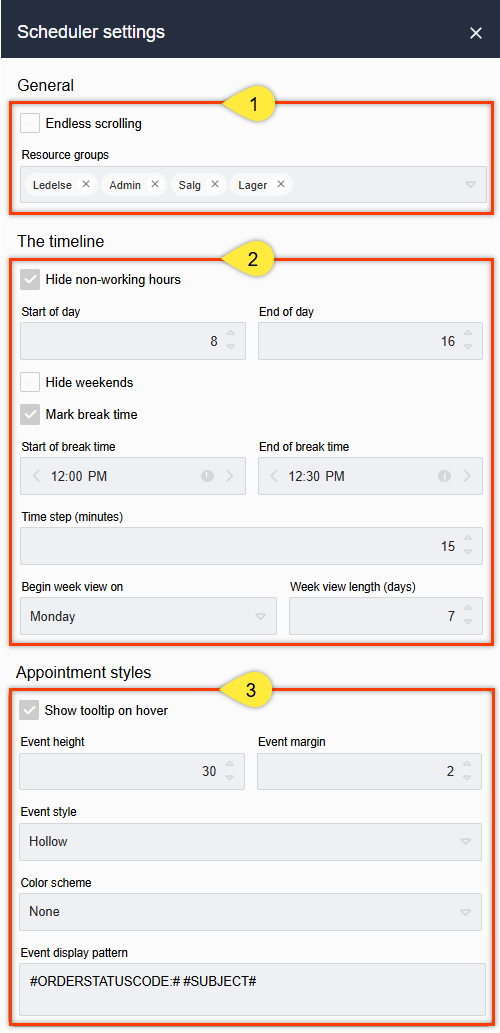
- In the General section you will find the options for which resource groups you'd like to have visible in the Resource view at any given time, as well as the option to enable "Endless Scrolling" which enables you to scroll and zoom your timeline freely. Note that Endless Scrolling disables whatever timespan view you've chosen, and you need to click one of the timespan buttons to reenable that feature.
- The Timeline section provides all the options that are available for customizing the presentation of your timeline. Here you can—among other things—hide or show non-working hours, hide or show weekends, and whether to define a set break time. You can also choose the time interval for events you schedule directly in the timeline by clicking and dragging, and which day is considered the start of your week.
- The section called Appointment Styles mostly pertains to the visual presentation of the events and the timeline. Here you can define the height of events, which visual style and margins you'd like, and how events are colored. You can also set up the so-called Event Display Pattern, which determines how events in your timeline are named when they're connected to an order, entity, or task. You can read more about this here.
Holidays
You can have the scheduler mark certain holidays and vacation days so that these are clearly visible on your timeline. These dates have to be defined at the client level. You can find the table where you add these dates by opening the home menu (⌨️Alt+H), and navigating to Other > Holidays.
Simply click the add button to add a date to the table with an appropriate description. Remember to save (⌨️Ctrl+S) for each new row added to the table.
Was this article helpful?
That’s Great!
Thank you for your feedback
Sorry! We couldn't be helpful
Thank you for your feedback
Feedback sent
We appreciate your effort and will try to fix the article