Before you begin:Microsoft 365 integration requires your client to have the "Office 365" integration module activated. This can only be activated by our Support agents. Setting up the integration also requires that you have access to edit your Resource settings. If you lack this access, please inquire with your local management to set up Microsoft 365 integration for your user account. |
Introduction
Some customers plan their day in different systems:
- Teams-meetings with clients, personal appointments, etc., are scheduled in their M365 (Outlook) calendar.
- Resource planning as it pertains to orders, tasks, and entities, are scheduled in Quick3.
To simplify workflows and reduce the need to juggle two different calendars, Quick3 provides the opportunity to synchronize the scheduler with one or more M365 calendars through a simple authentication process performed on a user's Resource card. After doing this, the user can see all appointments they have created in their M365 calendar directly in their Quick3 Scheduler.
Setup
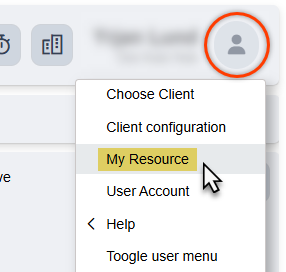
To integrate your M365 calendar in Quick3, click your user icon in the top right, and select My Resource.
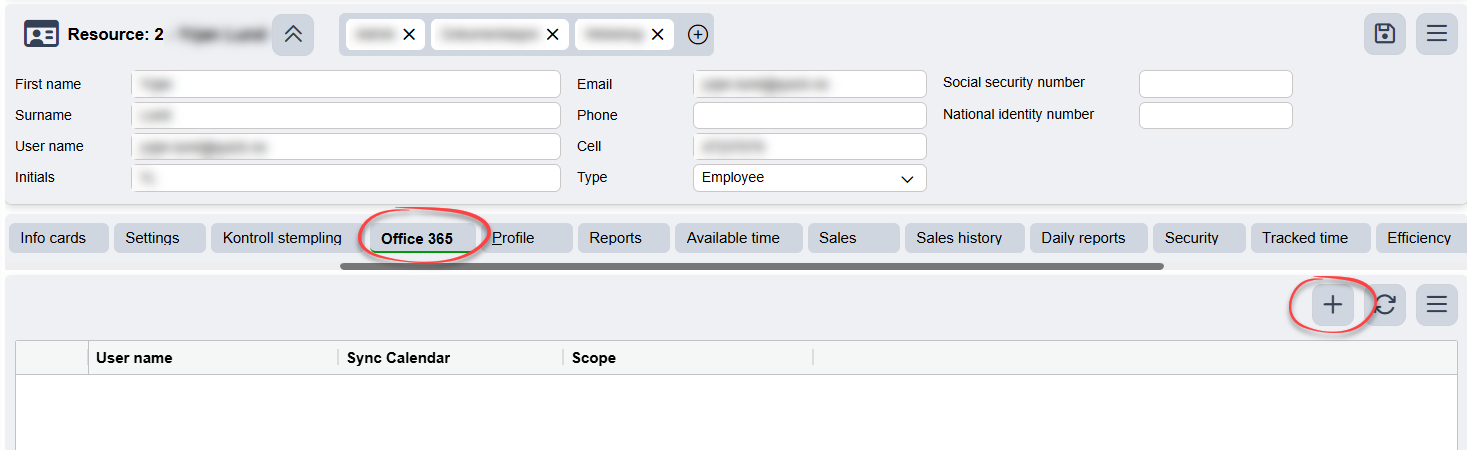
On your Resource card, find the tab called Office 365, and click the plus sign to add your account.
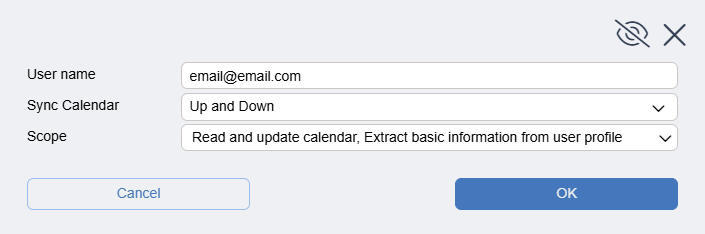
In the dialogue box that appears, enter your M365 e-mail address as your user name, and choose the direction of your synchronization:
- Down
Pulls appointments down from M365 and schedules them in the Quick3 Scheduler. This has to be done through manual synchronization, or through a scheduled job (both of these methods are described later in the article). - Up
Sends appointments from the Quick3 scheduler and inserts them into your M365 calendar. This synchronization happens automatically as soon as an appointment is created or edited in the Quick3 scheduler. - Up and Down
Synchronizes all appointments both ways. Syncing against M365 happens automatically, but sync to Quick3 still needs to be done manually, as described above. - None
Can be selected as an option for temporarily stopping synchronization on an account without having to delete it from the table. This option will only display on accounts already added to the resource.
Scope determines what permissions you would like Quick3 to have for your external calendar. The available permissions are determined by the synchronization direction you've chosen. We recommend leaving these options as default unless you have very specific reasons to alter them.
After clicking OK, you will be redirected to external authentication with Microsoft. When the authentication is completed, the connection will be established.
| If you are getting notices about "administrator privileges" or something similar during the authentication process, this means that your company has set limitations for your M365 subscription which hinders integration with Quick3. Inquire with your local IT manager for assistance with this issue. |
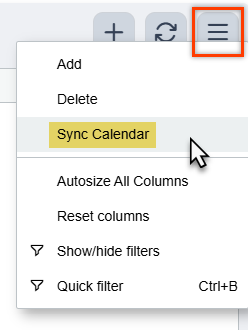
Users will need to synchronize manually once the connection is set up the first time. You can do this by clicking on the hamburger menu in the same tab, and then choosing Sync Calendar. Appointments will then sync between systems based on the direction and permissions you chose during setup.
Multiple calendars
If desired, it's possible to download data from several calendars into Quick3 from M365, but it is only possible to upload data to a single calendar outside of Quick3. This means that even if several accounts are added, you will only be able to send appointments to one of these accounts. The first account added is considered the "main account" in this case, and will be the account selected for uploads if more accounts are added.
Automatic synchronization
In order to avoid having to manually synchronize every time you want to import appointments from your M365 calendar, you will need to create a Scheduled job in Quick3 which runs this synchronization procedure at regular intervals.
To do this, open the home menu (⌨️Alt+H), and find Settings > Scheduled jobs. Click the plus sign to create a new scheduled job of the "Synchronize Office365 Calendars" variety. Here, you can also choose to set up e-mail notifications if the job were to fail for whatever reason. Here's an example of a typical scheduled job which handles this task (click the image to zoom in):
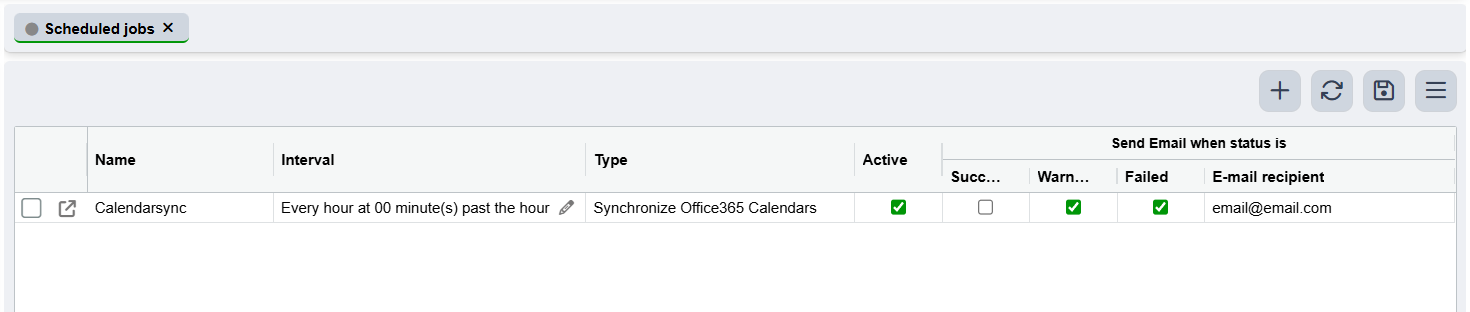
| For this scheduled job we recommend a frequency of no more than one activation every half hour, as Microsoft can interpret several calls within a shorter timespan as an attack on their network, and can close the connection based on security concerns. |
Remember to save (⌨️Ctrl+S) for the scheduled job to be stored and activated.
Was this article helpful?
That’s Great!
Thank you for your feedback
Sorry! We couldn't be helpful
Thank you for your feedback
Feedback sent
We appreciate your effort and will try to fix the article