Except for startups that begin using Quick3 right from the start, most companies need to convert or import data from one or more other systems. (Startups may also need to import data—for example, price lists from suppliers.)
The quality of imported data can never be higher than the quality of the source data you import. And correcting errors after import can be complicated. It is therefore important to prepare this work thoroughly and for everyone involved to take responsibility for their part of the task.
The Import wizard
Quick3 is equipped with a very powerful Import wizard that helps with this process. It handles most Excel files, fixed-width files, and comma- or semicolon-separated files. The technical use of the Import wizard is covered in other articles in this chapter. Here, we will cover the general points you need to consider.
As mentioned, the wizard is very powerful and flexible when it comes to “mapping” columns in the source file to fields in Quick3. There are also a number of transformation rules you can set up, including replacements and filters. But following a few guidelines will make importing easier for you:
- The column layout must be consistent throughout the file (for example, a customer number must always be in the same column when you import a file of customers...)
- All columns should have a header (they do NOT have to, but this makes mapping easier and faster)
- There should not be any headers, total rows, or empty rows further down in the Excel file (although it may be possible to filter them out using the filter functions).
- Data should be of the correct type in all columns (although many discrepancies can be corrected using transformation rules)
- References must be included so that related data can be linked (for example, an order file must include a customer number so the order can be linked to the correct customer, and all order lines must include an order number so they can be linked to the correct order header)
- The source file should not be an export from a printed report or PDF, but preferably an export of raw data directly from the database or export functions in the old system.
Roles and responsibilities when preparing and importing data
If you are responsible for data conversion yourself, from export to import, you are responsible for quality throughout the process.
For large and complex installations, however, data conversion is often a task involving several parties. To make the process run as smoothly as possible, it is important to ensure data quality at every step, first and foremost by the person responsible for each step.
Whether you export, prepare, and import the data yourself or purchase these services from Quick Systems or a third-party consultant, it is important to understand that poor-quality source data will result in extra work for everyone involved. The consultant assisting you will rarely be able to anticipate this extra work in advance unless they are also responsible for extracting data from the old system and have in-depth knowledge of the system and how you have used it. You, as the customer, will usually have to cover the cost of this extra work. The best way to avoid such surprises is to carry out thorough checks and reconciliations in the old system beforehand.
Carry out thorough reconciliations in the old system before exporting. Does the general ledger balance? Do the customer and supplier balance lists match the general ledger? Do the inventory value in the inventory lists match the general ledger?
After exporting, you should also check the files before importing them into Quick3. Excel is a great tool for this. If you have exported general ledger transactions, the sum of the amounts should be 0. If the general ledger and subledger have been exported separately, the sum of the transactions and the sum of the balances should match the trial balance. If you have exported an inventory list with cost prices and quantities on hand, the total inventory value should match the inventory accounts in the trial balance.
If this does not match in the files being imported, it will not match in Quick3 after the import either. And the import itself will probably fail because validation rules in Quick3 will reject the data.
Setting up master data (and cleaning it up if necessary)
The basic setup must be in place before you start importing data. A good amount of master data is already set up the first time you start Quick3, such as VAT codes and voucher types. Before importing data from other systems, it is important to familiarize yourself with this master data and compare it with the corresponding data in the system you are importing from.
A standard chart of accounts is usually included too, unless you have ordered a completely empty setup. If you are going to use a chart of accounts that is completely different, it may make sense to delete or clear the chart of accounts before importing a new one. Be aware that some accounts may not be possible to delete because they are referenced by other data and fixed settings—for example, accounts for freight, invoice fees, and rounding differences.
Using alternative references for “mapping”
Many tables in Quick3 have space for alternative references. For example, the chart of accounts has space for account numbers, VAT codes have space for an import VAT code, and voucher types have space for an import code.
You can use this to “map” the codes in the system you are retrieving data from to the codes that are standard in Quick3. For example, if you are importing from a system that uses different types of VAT codes than Quick3. It is also possible to change the codes in Quick3 to match the old system, but we recommend mapping them instead. This will make things easier if you need help from our support team, since you will then be using codes our consultants are familiar with.
NOTE! Mappings must be one-to-one. This means you cannot have two different account numbers in the old system pointing to the same account in the Quick3 chart of accounts. If you need to combine accounts in the chart of accounts, you must either do so in the old system before exporting the chart of accounts (and before exporting the general ledger). Otherwise
Using default values and fixed values
The Import wizard supports default values and fixed values. You can use these if the source you are importing from is missing mandatory data.
Be aware that there may be operations you cannot perform with converted data if it is incomplete. For example, you will not be able to generate a VAT report based on imported data if the imported data is missing a VAT code and has been replaced with a fixed value. Therefore, try to ensure that the data to be imported is as complete as possible before importing.
The order of import
It is important to import data in the correct order. This is because there are dependencies between different types of data.
For example, customers and suppliers are linked to an account in the chart of accounts. Therefore, the chart of accounts must be in place before you import customers and suppliers. Items are linked to an item group. Therefore, the item groups must be in place before you import items. Individuals (e.g. cars) are linked to an owner (customer). Therefore, customers must be in place before you import individuals.
The following order will usually work well:
- Chart of accounts
- Product groups
- Suppliers
- Products
- Inventory
- Customers
- Individuals
- Vouchers (general ledger and subledger)
- Orders
- Sales history (invoices)
Importing vouchers will automatically create any missing customers and suppliers. However, customers and suppliers created this way will only have a number (and possibly a name if it is included in the voucher file). So it is clearly recommended that you import customers from a customer file.
Using the old system during the conversion process
If you need to use the old system during the conversion process, it is important that you complete the imported master data, such as suppliers, products, and customers, before you import transactions (vouchers and sales history/invoices). This is because new data may have been added to these tables since the first import. If you do not take this into account, the voucher and history imports may fail.
Convert vouchers and sales history last. It is usually not necessary to “test-convert” vouchers and sales history. And it is usually not critical to operations if a day or three passes between when you start using Quick3 and when the history is converted.
The conversion process will be simplest if you can avoid using the old system for anything other than lookups while the process is underway. In any case, it is important to run the necessary reports in the old system for reconciliation after import at the same time as you export the data. It is equally important to reconcile after import before you start performing operations that change the basis for reconciliation in Quick3.
Setting up number series
Remember to set up number series after importing and before you start using Quick3. For example, customer and supplier numbers, voucher numbers for different voucher types, invoice, order, and purchase order numbers, etc.
About column mapping
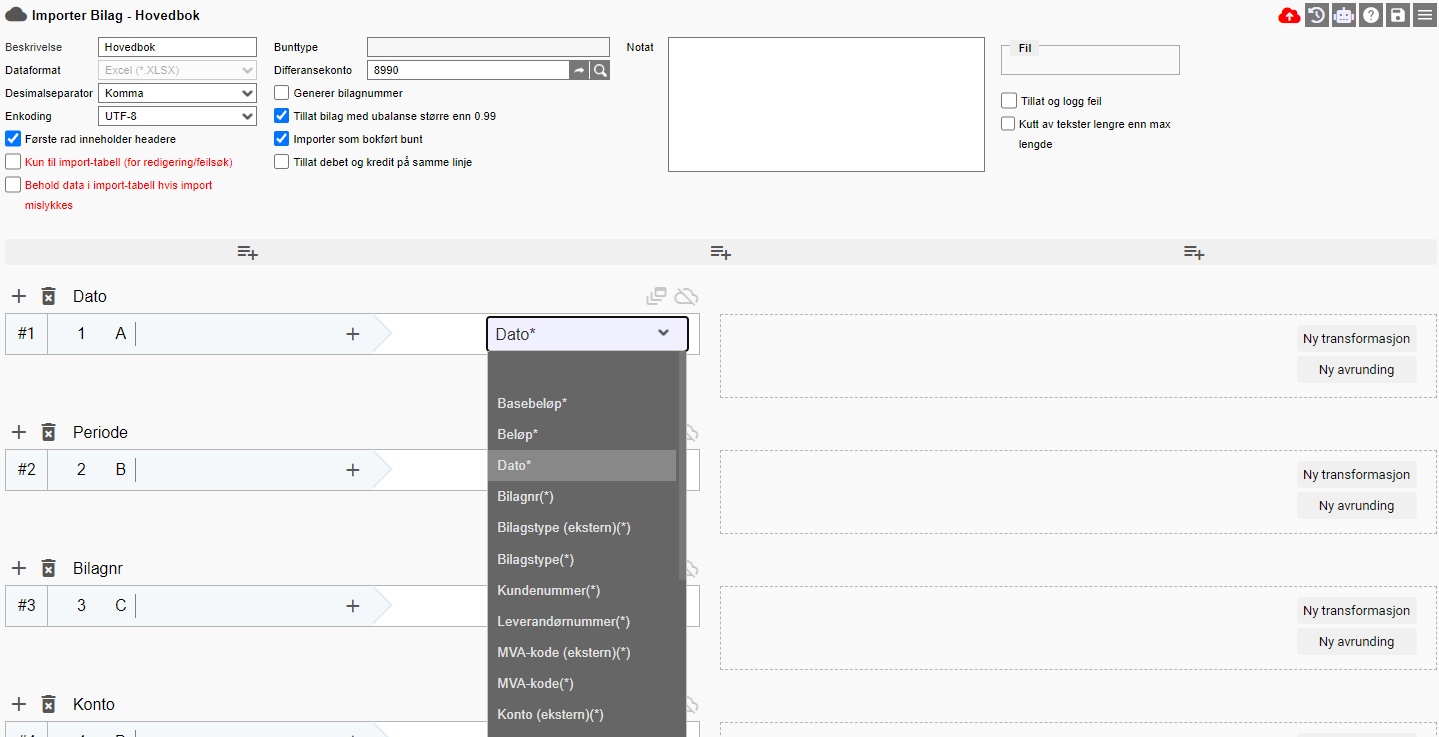
We will not go into all the details of mapping columns to Quick3 fields here (you can find an overview of which columns can be mapped in each import setup). But here are a few useful tips to keep in mind, using the import of vouchers (general ledger and subledger) as an example:
Fields marked * are mandatory. For example, base amount (amount in home currency) and amount (amount in currency). This means that both columns must be mapped. However, if you only have amounts in home currency in the file you are importing from, you can map both fields to the same column (so you do not need to add an extra column to the Excel file).
Fields marked (*) are conditionally mandatory. This means they must either be included in the file or the requirement must be met in another way. For example, voucher number. If it is not included in the file, you can let the Import wizard assign voucher numbers automatically during import.
Voucher type and external voucher type are interchangeable. This means that if external voucher type is included, voucher type does not need to be included, and vice versa. (If voucher type is not included in the file you are importing from, you can also meet this requirement by adding a transformation rule that sets the voucher type to the constant value 0 (usually the voucher type for “Miscellaneous”).
Customer number or supplier number is mandatory only if the general ledger account is an account that requires a subledger.
Was this article helpful?
That’s Great!
Thank you for your feedback
Sorry! We couldn't be helpful
Thank you for your feedback
Feedback sent
We appreciate your effort and will try to fix the article