Overview
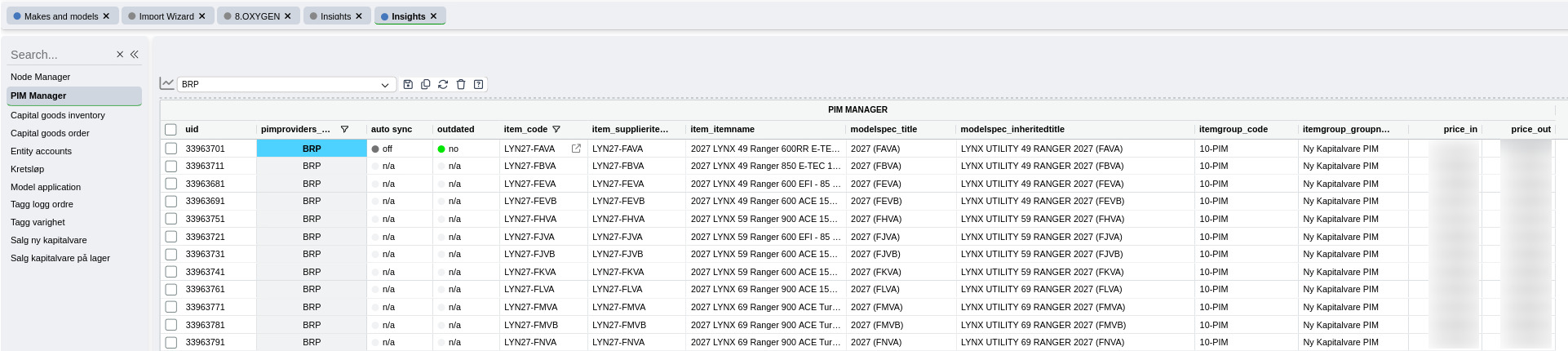
The PIM Manager is a tool (SmartTab) where subscribers of PIM data can import data from the PIM provider into their own Quick3 client. PIM Manager gives the user more control, than the standard "Connect to PIM-model" method found in the "Makes and models" hierarchy.
This tool will likely only be relevant for some Quick3 clients.
Disclaimer
Currently, this tool is "in beta", which means there might be bugs and unexpected behaviour. As well, the tool is currently only in English.
Location
This module, if enabled for the client, is located below "Entity" and "Insights".
Prerequisite
The PIM Manager tool needs to be activated for the client, and the client needs to have an active PIM subscription for this tool to show any data.
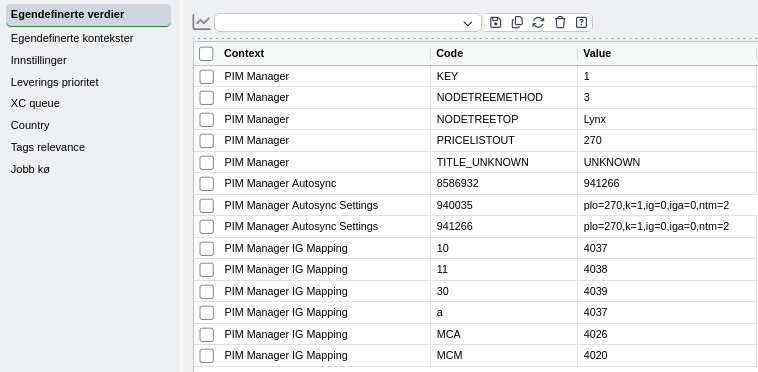
As well, some specific client data is needed as well. Which data depends on the use of this tool
Actions
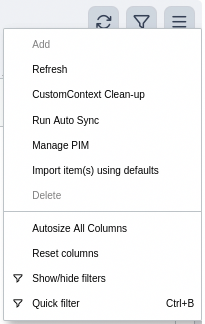
This tool has several related actions, as shown on the image and described below.
Action: CustomContext Clean-up
Behind the scene, this tool is using a part of Quick3 called "Custom Context" for storing user data. After a wile there will likely be outdated data in this part of the system. This action has been created to clear outdated data from Custom Context. In the time of writing it is only outdated Autosync data (data related to the Autosync feature) that is removed. Use of this action will likely not be done often, as it is purely meant for administrative purposes.

Action: Run Auto Sync
Executes importing of all items where "Auto Sync" has been set to true.
Action: Manage PIM
Manage PIM is the main action of this tool. This is the action that is used to import items from the PIM provider to the local client.
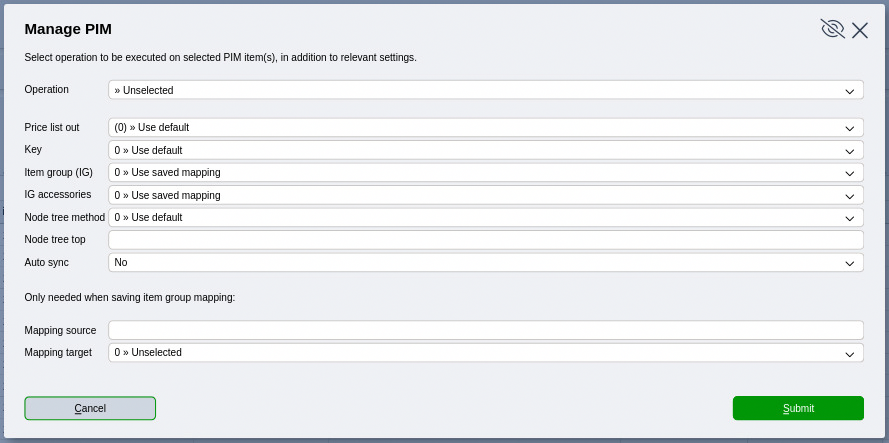
When the "Manage PIM" action is selected, a window pops up. There are several operations that can be executed from that window:
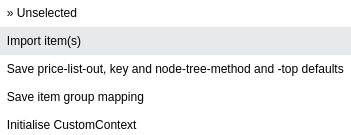
Operation: Import Item(s)
The main operation is "Import item(s)", that is used for importing the item or items that were selected in the PIM Manager overview grid view. Several choices has to be made for items to be imported:
Price list out
Set the outgoing price list that the item(s) will be using.
Key
Defined if the (Quick3) item code or the supplier's item code should be used as unique key. Often, the correct value to use here is "Item code".
Item group (IG)
Which item group the capital item should be using after import.
IG accessories
Which item group the accessory items should be using after import. Note: if the accessories should use multiple item groups, the saved mapping feature needs to be used.
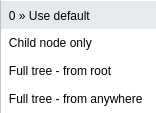
Node tree method
When importing an item, there are different option for how to handle the makes and models node tree, related to the item(s) that are imported. To better understand the different options, an example is provided here.
Let us say that the following item is to be imported:

CHILD NODE ONLY
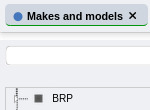
For "Child node only", only the node which the imported item is connected to will be imported. For this method to be used, a root node with the same name as the PIM provider/supplier needs to exist. In our example "BRP" is the name of the PIM provider. So, a root node named "BPR" has to exist in the "Makes and models" hierarchy:
By default, when importing an item using this method, all items are placed under an "UNKNOWN node" which is automatically created on import (note: the name of the default node can be changed in Custom Context, or directly in the node tree in "Makes and models"):
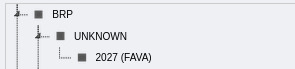
Likely, having imported items ending up under the unknown node, is not what is wanted. To control the placement of imported items the "Description" field in the node's settings can be used. In that field it is possible to specify the item number / SKU of the item(s) that should be placed under the respective node. In our example "LYN27-FAVA" can be added to a more fitting node:
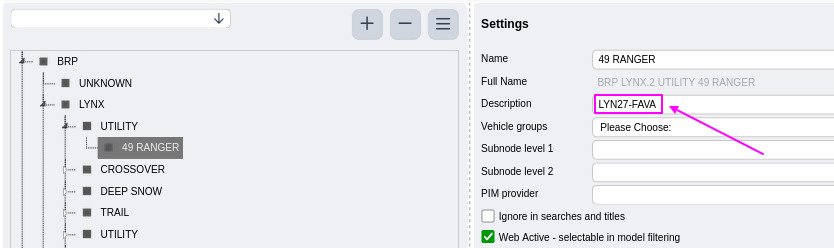
Then, when importing the same item as above, this becomes the placement of the new item's node:
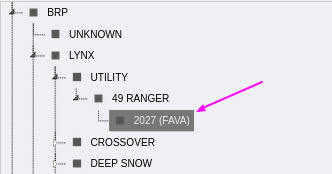
It is possible to specify multiple filter / search values in the description field, separated by a comma. It is also possible to use wildcard ('*' or '%'). So, in our example, to have 2026 and 2027 models ending up under the same node, one can write "LYN26-FAVA, LYN27-FAVA". Or, if one wants all items with "FAVA" in the item code, wildcard characters can be used to specify "*FAVA*".
FULL TREE - FROM ROOT
The "Full tree - from root" option creates the entire node tree, starting at the root level. The name of the node that is imported is used to locate potentially existing nodes in the client's node hierarchy. If no existing node is found, a fitting node is automatically created.
In our example, the result of an import using this node tree method, would be that the entire tree would be created automatically:
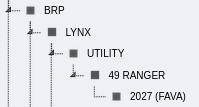
FULL TREE - FROM ANYWHERE
If starting at the root level is not wanted, the "Full tree - from anywhere" method can be used. Then all existing nodes are used to search for existing matches. If no matches are found, a new node tree is created at the root level.
If this method would be used in our example, the following node would be picked for the import:

Note: For all node tree methods, if several nodes exist with the same name, the newest node is selected.
Node tree top
Sometimes, it is not relevant or needed to import the entire node tree. To do a partly import of a node tree, the name of the top can be specified in this field.
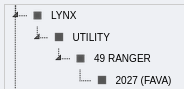
In our example, we can for example define "Lynx" as the tree top:
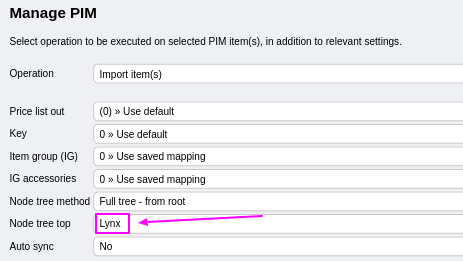
The result such an import will be:
Auto sync
Define if the item(s) shall be included in the "Auto sync" routine. Please note that currently, no scheduled worker is importing the items where the auto sync has been enabled. For the moment the action "Run Auto Sync" needs to be triggered manually, for all auto sync items to be re-imported.
Operation: Save ... defaults
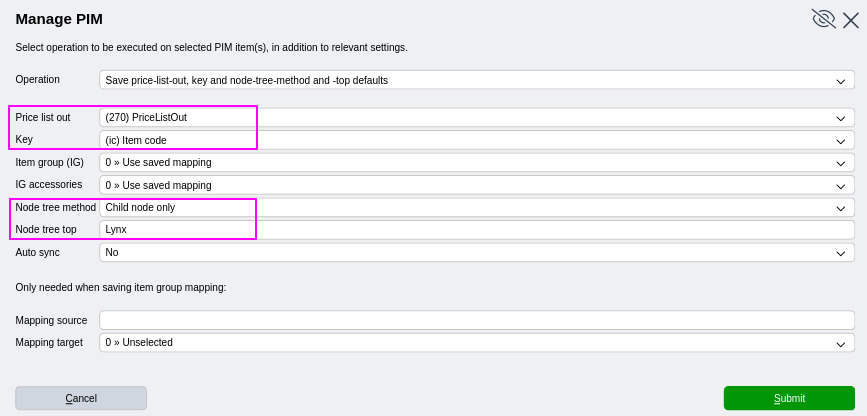
To avoid having to specify all values on each import, defaults can be saved. When this option is selected,four different defaults can be saved, as shown here:
Option: Save item group mapping
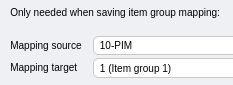
This option can be used to save mappings in between the PIM provider's item groups and the local client's item groups. Specify the PIM's IG code in the text field, and select the local client's IG from the dropdown. Upon import, this mapping can be used for setting the item group for all imported items.
Action: Import item(s) using defaults
When default values has been specified, this action can be triggered for a quick import of one or more items.
Was this article helpful?
That’s Great!
Thank you for your feedback
Sorry! We couldn't be helpful
Thank you for your feedback
Feedback sent
We appreciate your effort and will try to fix the article