Before you begin:
User Privileges is a module in Quick3 that only Administrators can access. The administrator role is assigned to one or more employees, usually senior management, during the initial system setup. Contact someone within your company if you need to assign or remove User Privileges but do not have access to the module.
If your client is missing an administrator for any reason, contact Support for further assistance.
Introduction
Quick3 consists of many different modules and is a comprehensive system. It's neither necessary nor practical for every user of a client to have access to all modules at all times. This is why we define User Privileges.
In simple terms, you assign permissions to User Groups, then add Members to those groups to control which users can access what.
The number of User Groups and the permissions assigned to each group can be as granular as your company needs. For example, if you have a management team, a sales team, and a warehouse team, you can create three User Groups called Management, Sales, and Warehouse. In User Privileges, you tell Quick3 which modules each group can access, then add employees as Members of the groups according to their roles.
Overview
The User Privileges module is divided into three sections:
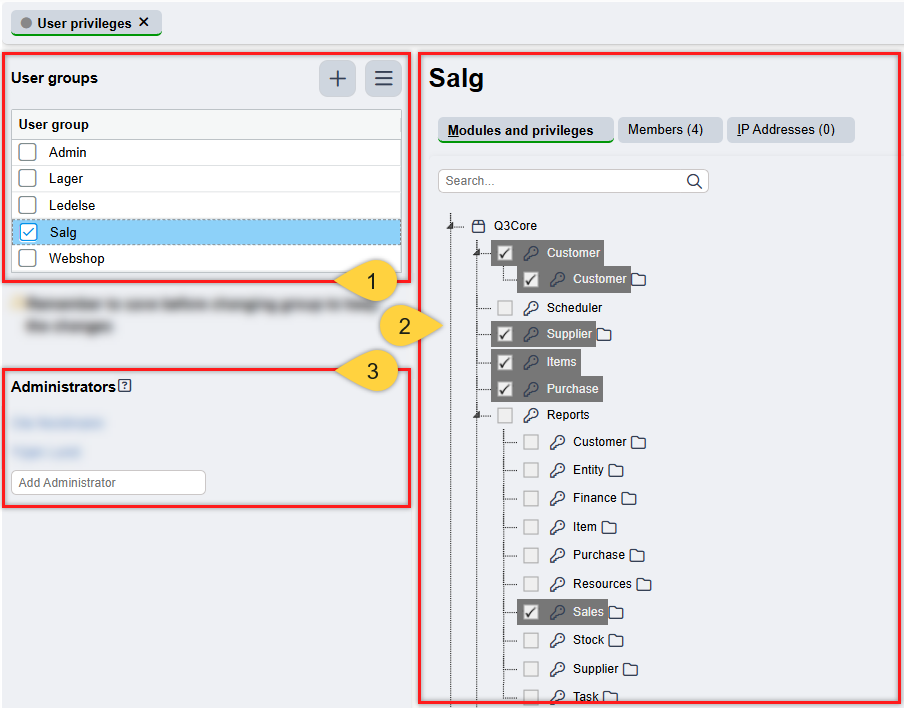
- User Groups
Here you can create, delete, and name User Groups. This is also where you select the User Group you want to edit in section 2. - Permissions and Members
In this section, under the Modules and Access tab, you select which modules and permissions the selected User Group should have. Under the Members tab, you can add or remove users from the group. - Administrators
Here you can see which users have the administrator role. You can also add or remove administrators here.
Setup
Let's create a User Group and assign permissions to it:
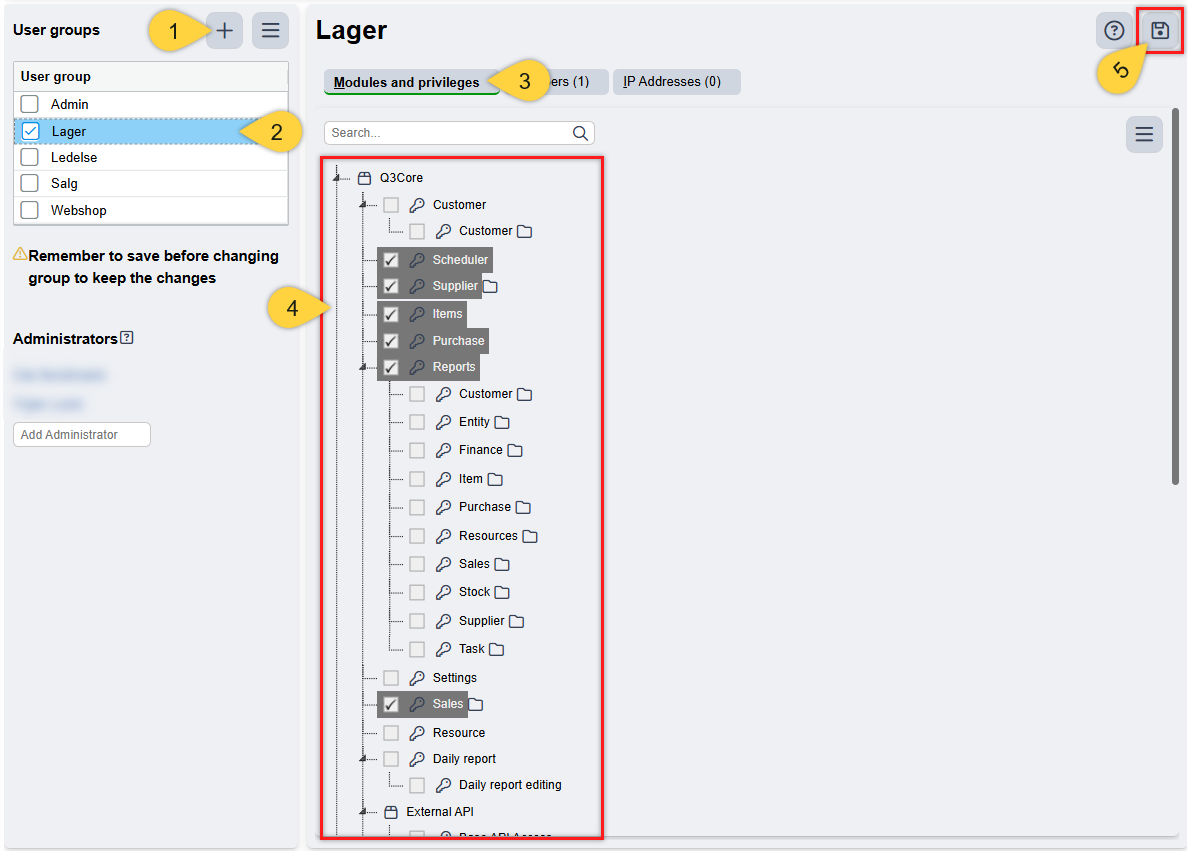
- Click the plus sign.
- A blank row will appear in the User Group table. Double-click it to give it a name, then press Enter on your keyboard. The group will be named and should now be selected so you can make further changes.
- Make sure the Modules and Privileges tab is open.
- Select the modules and permissions you want this User Group to have. Click the boxes and arrows in the tree to expand or collapse the selection.
- Remember to save by clicking the save icon in the top-right corner.
Which permissions you can assign to User Groups depends on which modules are enabled for your company. For example, if you do not have an agreement to use Quick3's accounting module, it will not appear as an option here.
Now that the User Group has been created and its permissions have been defined, let's add members so employees get the access they need:
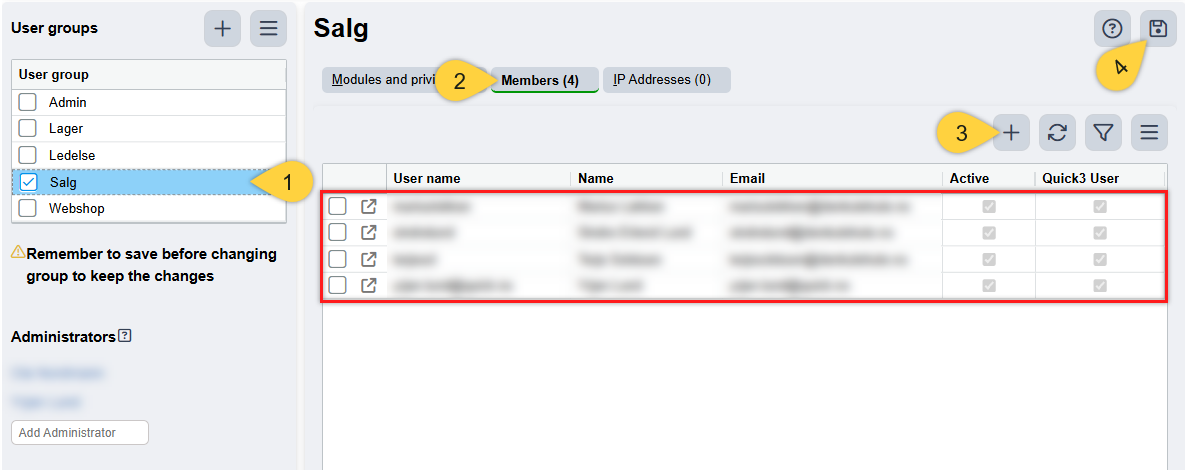
- Make sure the User Group you want to add members to is still selected in the User Group table.
- Click the Members tab on the right.
- Click the plus sign. This opens a User Search, where you can search for an individual user by name or run an unrestricted search to list all employees. Select the users you want to add, then click OK in the bottom-right corner of the search window. The new members should now appear in the table for the group.
- Remember to save!
If you need to remove members from an User Group; Instead of adding new users with the plus sign, check the row of the user (or users) to remove, then right-click in the table and select Delete. Again, remember to save!
Administrators
An Administrator is a user with expanded permissions beyond those that can be assigned through User Privileges:
- Managing User Groups
- Assigning permissions and memberships
- Being able to add or remove other administrators
This role should be assigned with great care! For security reasons, the number of administrators should be kept to a minimum, and the role should only be assigned to employees who genuinely need full access to all modules in the system at all times.
To add a new administrator, simply click the Add Administrator button in the User Privileges screen. Enter the name of the person you want to add, then click their name in the suggestion list. Apply the change by clicking Save.
To remove an administrator, hover over their name in the list. An X will appear on the right; click it to remove the name from the list. Click the X, confirm the change in the dialog that appears, and the name should disappear from the list. Apply the change by clicking Save.
Best practices
Quick recommends one User Group per user. Technically, a user can belong to several different User Groups, but we advise against this because it can often cause conflicts in the system. If a user belongs to multiple groups, one group may grant access to a module that another group does not, which can lead to unpredictable behavior in Quick3.
For example, sales employees at your company may not usually need access to the Webshop module, but some employees may suddenly need it. In that case, create a separate User Group called, for example, SalesWebshop that combines the permissions from the Sales and Webshop groups, then move the relevant users into this group.
Although it is also possible to manage which User Group a resource belongs to directly from the resource card, we still recommend using User Privileges for maximum oversight of the members in the different groups.
Was this article helpful?
That’s Great!
Thank you for your feedback
Sorry! We couldn't be helpful
Thank you for your feedback
Feedback sent
We appreciate your effort and will try to fix the article